Free alternatives to Canva
Canva's free tier is genuinely useful, which is exactly why the paywall stings: the background remover, Magic Switch, and premium assets all sit behind Pro at $144 per year (as of July 2026). And because designs cannot be exported in an editable format, the longer you stay, the harder leaving gets. These free tools cover most of what Pro is selling.
Facts checked as of July 2026Read our Canva review
Jump to an alternative



Photopea
Best Free Alternative ToCanvaLayered photo editing free in the browser, covering most of what Canva locks behind Pro, with ads as the only cost
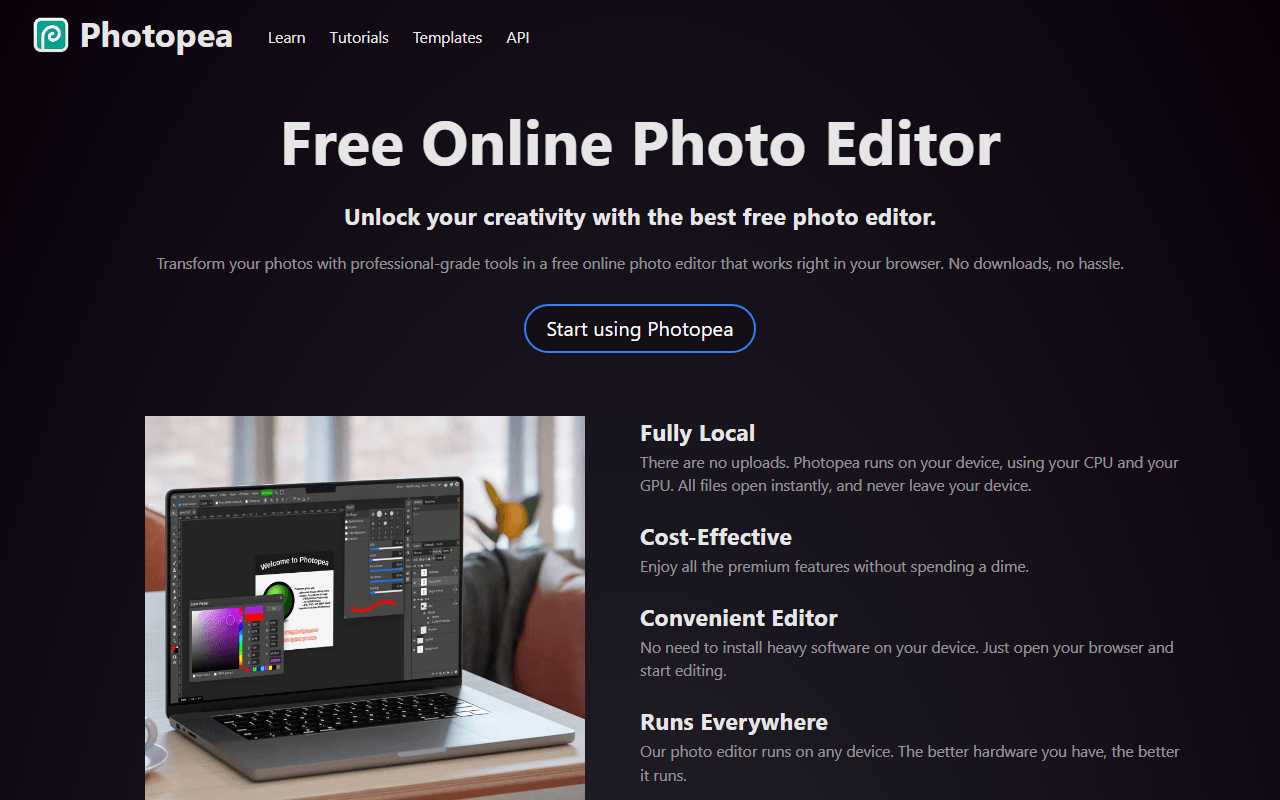
Most Canva Pro upsells are photo edits, and Photopea does them free: background removal, layers, masks, retouching, and PSD support, all in the browser with nothing to install. Every editing feature is on the free tier; ads beside the canvas are how it pays for itself. Premium removes them from $5 per month, sold as passes that do not auto-renew.
- Free plan, paid from $5/month (as of July 2026)
- Czech Republic
 Czech Republic
- Best for:
- The photo edits Canva locks behind Pro, done free in the browser
- The catch:
- AI features like the background remover are limited to about one free use a day, and ads take up screen space.
Compared to Canva
- Advantage: Layer-based photo editing that goes far beyond Canva's editor
- Advantage: Opens and exports PSD files; Canva has no editable export at all
- Advantage: Every feature is free; Canva keeps its most-wanted tools in Pro
- Tradeoff: No template or stock library for building designs from scratch
- Tradeoff: About 1 free AI action per day, against Canva Pro's larger allowance
- Worth knowing: One developer maintains the whole product
Built-in icon, photo, and illustration libraries like Canva's asset panel, in a free native app that works offline
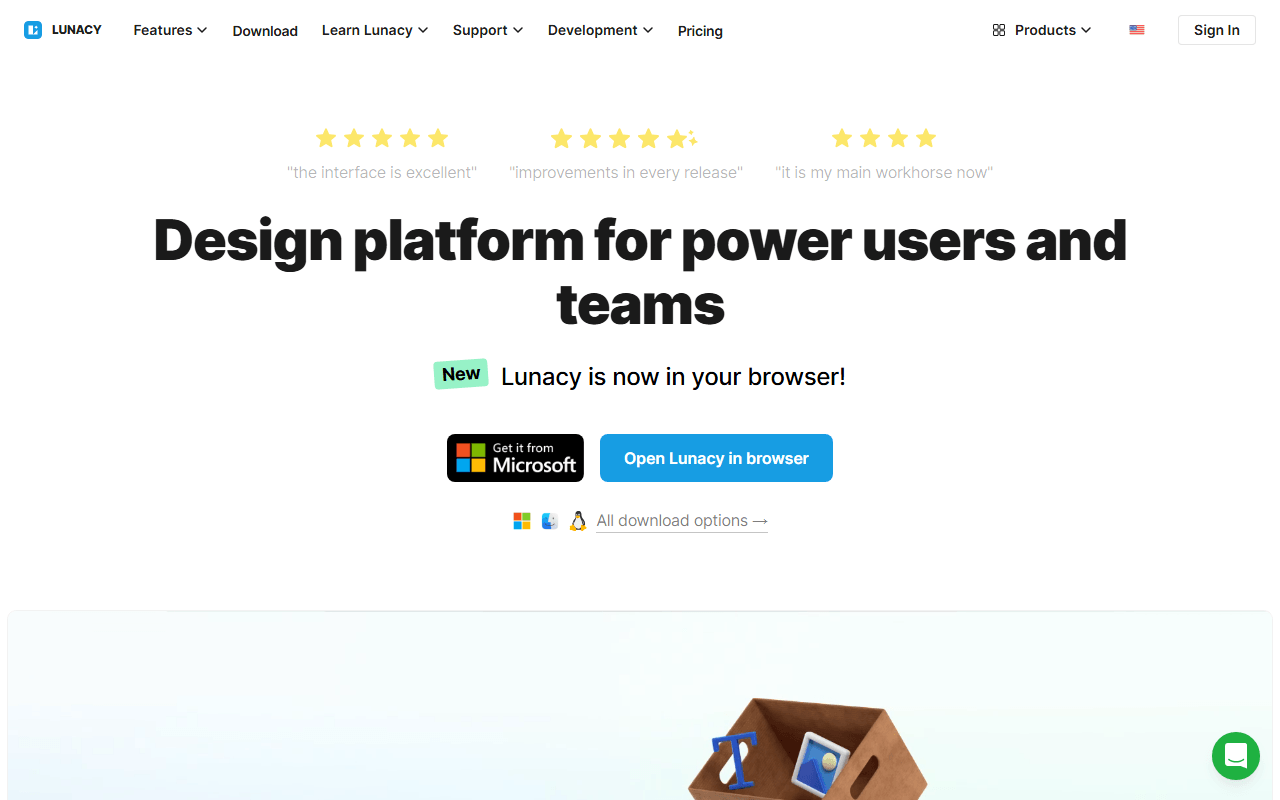
Lunacy gives you the part of Canva people quietly pay for: icon, photo, and illustration libraries inside the editor, in a free native app for Windows, macOS, and Linux. It is a real design tool with vector editing and auto layout, and it works offline with unlimited local documents. Free assets come in low-resolution raster form with attribution required; Pro at $11.99 per month unlocks the vector versions.
- Free plan, paid from $4.99/month (as of July 2026)
- Best for:
- Canva-style built-in assets inside a free app with real design tools
- The catch:
- Free-tier assets are low resolution and require attribution, which is the Pro upsell working on you.
Compared to Canva
- Advantage: Works offline with unlimited local documents; Canva needs a connection
- Advantage: Real vector editing, which Canva does not do
- Advantage: Opens Sketch files and exports standard formats, so less lock-in than Canva
- Tradeoff: Far fewer ready-made templates for social posts and presentations
- Tradeoff: Free built-in assets are low resolution and require attribution
- Tradeoff: Steeper learning curve than dragging a Canva template
Real vector design tools free for up to 8 editors, with no premium asset upsell woven into search results
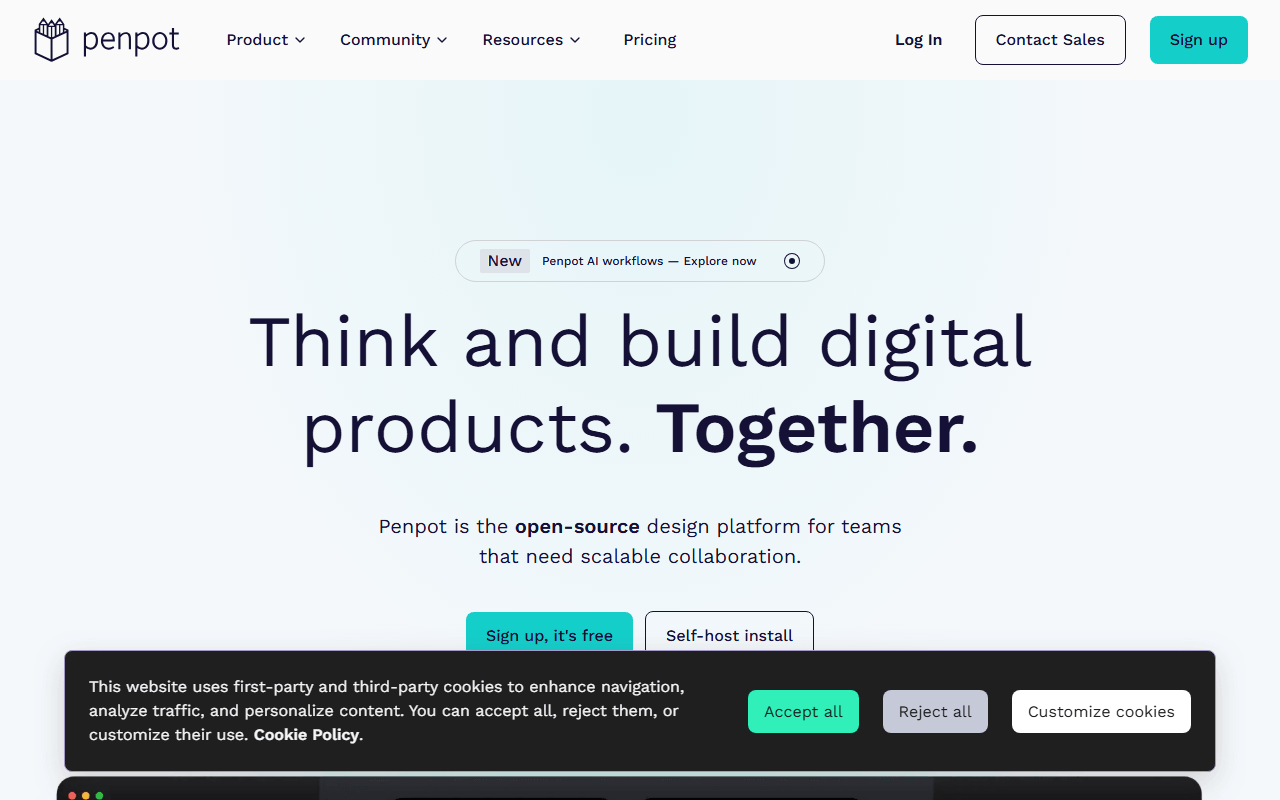
Penpot is the move when you outgrow templates and want to own your design files. It is an open source design tool with real vector editing, components, and prototyping, free for up to 8 editors with unlimited files and 10GB of storage as of July 2026. Everything is stored as standard SVG, the exact opposite of Canva's closed format.
- Free plan, paid from $7/month (as of July 2026)
- Spain
- Open source (MPL-2.0)
 Spain
Spain- Best for:
- Teams graduating from templates to real, portable design files
- The catch:
- There is no template or stock library to speak of; you start from a blank canvas.
Compared to Canva
- Advantage: Files are standard SVG you can take anywhere; Canva has no editable export
- Advantage: Real vector and UI design tools, not a template filler
- Advantage: No premium asset upsell woven into search results
- Advantage: Free for up to 8 editors with unlimited files (as of July 2026)
- Tradeoff: No template library, so non-designers face a blank canvas
- Tradeoff: No built-in stock photos or social post presets
Full vector editing with zero paywalled features, the right tool for logos that need to scale beyond a template
For logos and print-precise artwork, Canva was never the right tool, and Inkscape is. It is a full desktop vector editor, free under the GPL since 2003, with pen tools, typography, and SVG output and no paid tier of any kind. Expect to invest a few sessions learning it; that is the real price.
- Completely free (as of July 2026)
- Open source (GPL-2.0-or-later)
- Best for:
- Logos and scalable artwork that a template tool cannot produce
- The catch:
- The interface takes real learning time, and there is no collaboration or template library.
Compared to Canva
- Advantage: Professional vector editing; Canva is not a vector editor
- Advantage: Every feature free forever, with no upsells anywhere
- Advantage: Local files in standard SVG, fully yours
- Tradeoff: No templates, stock library, or social post presets
- Tradeoff: Desktop only, with no browser or mobile version
- Tradeoff: A few frustrating first sessions before it clicks
A deeper free design tool for social graphics and slides, worth it if you are willing to learn layers and components
Figma's free Starter plan handles social graphics and slide decks with more control than Canva gives you, using layers, components, and precise layout. The 3-design-file cap matters less for this use because drafts are unlimited. The trade is learning a real design tool instead of filling in a template.
- Free plan, paid from $16/month (as of July 2026)
- United States
 United States
- Best for:
- Marketing folks willing to learn layers for more control than templates allow
- The catch:
- The 3-file cap and blank-canvas start make it slower than Canva for one-off graphics.
Compared to Canva
- Advantage: Precise layout control that Canva's template editor cannot match
- Advantage: Reusable components keep repeated graphics consistent across designs
- Worth knowing: Free community templates and UI kits exist, though far fewer than Canva's library
- Tradeoff: Starter caps you at 3 design files with 3 pages each (drafts are unlimited)
- Tradeoff: Steeper learning curve for quick one-off graphics
Quick hand-drawn visuals for blog posts and slides with no account and no template lock-in
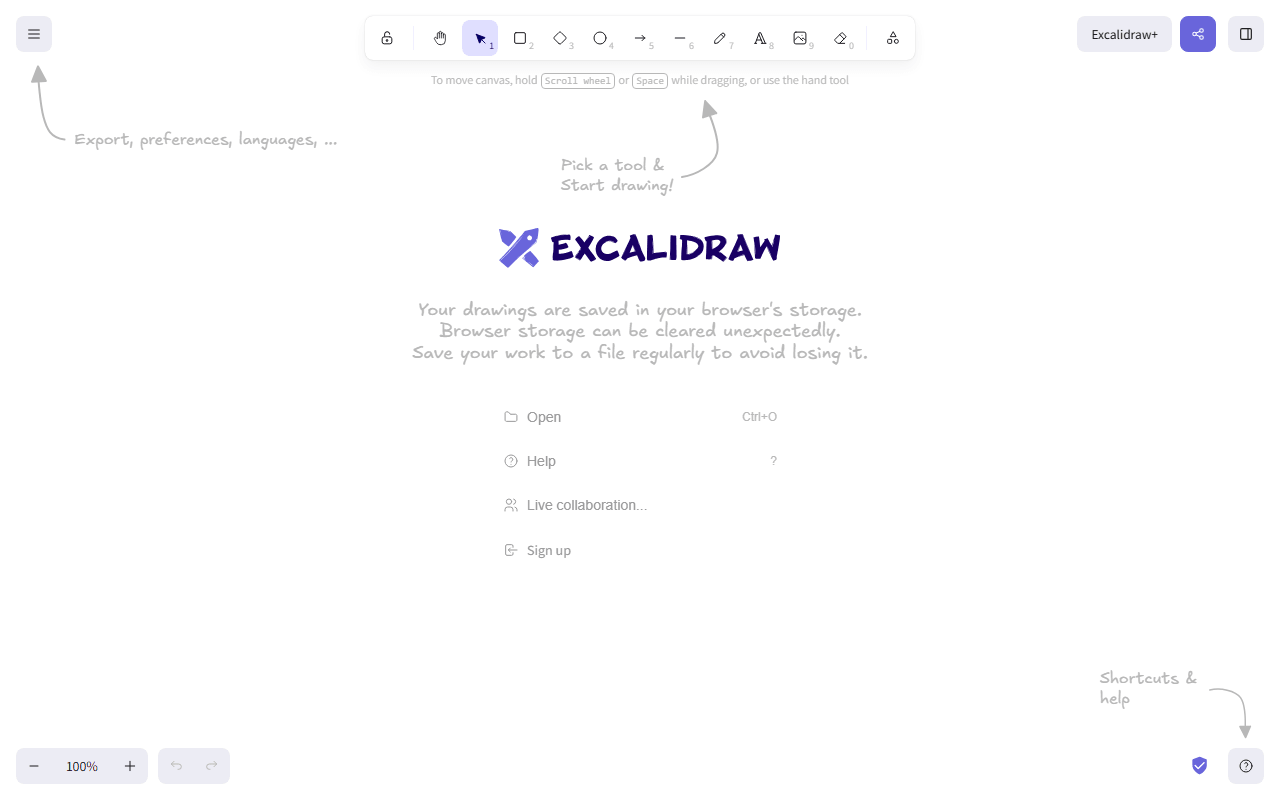
For blog diagrams, slide sketches, and explainer visuals, Excalidraw's hand-drawn style is a feature, not a compromise. It is free with no account, exports PNG and SVG, and skips the template treadmill entirely. It will not make polished social posts; it makes ideas legible fast.
- Free plan, paid from $6/month (as of July 2026)
- Czech Republic
- Open source (MIT)
- Best for:
- Hand-drawn diagrams and visuals for posts, docs, and slides
- The catch:
- One sketchy style and one browser-stored scene; it is a sketchpad, not a design suite.
Compared to Canva
- Advantage: Free with no account and no premium asset upsell
- Advantage: SVG and PNG export with no watermarks or locked assets
- Advantage: Faster than Canva for a quick diagram
- Tradeoff: No templates, stock photos, or brand kits
- Tradeoff: A single hand-drawn style, wrong for polished marketing graphics
How to choose
Name the Pro feature you keep bumping into. If it is photo editing and the background remover, Photopea does that free in the browser, and ads are the whole price. If it is having assets and templates inside a design app, Lunacy ships icon and photo libraries in a free native app. For logos and anything that must scale cleanly, learn Inkscape or Penpot once and you will never rent a vector tool again.