Free alternatives to Photopea
Photopea gives you real layered photo editing free in the browser, so the reasons to look elsewhere are narrow. Ads sit beside the canvas, very large files push against browser memory, the AI tools are limited to about one action a day, and one developer maintains the whole product (as of July 2026). It is also not a UI design tool, so if that is what you wanted, you are in the wrong category. Here is where each free option fits, split by what you were using Photopea for.
Facts checked as of July 2026Read our Photopea review
Jump to an alternative




Canva
Best Free Alternative ToPhotopeaAd-free image editing and a large template library, with the background remover people use Photopea for built in on Pro
Canva is the closest match for the everyday reason people open Photopea: cropping, touching up, and dropping images into a graphic. The free tier has unlimited designs, a large template and stock library, and 5GB of storage (as of July 2026), all with no ads. The background remover that Photopea rations to about one AI use a day is a Canva Pro feature at $144 per year.
- Free plan, paid from $144/year (as of July 2026)
- Australia
 Australia
- Best for:
- Quick photo touch-ups and social graphics without the Photopea sidebar ads
- The catch:
- It is not a full layered raster editor, and the background remover and premium assets sit behind Pro.
Compared to Photopea
- Advantage: No ads on the free tier, unlike Photopea's sidebar
- Advantage: Large template and stock library Photopea has little of
- Advantage: Backed by a large company, not a single developer
- Tradeoff: Not a true layered raster editor; it will not open a PSD faithfully
- Tradeoff: The background remover is Pro-only at $144 per year
- Tradeoff: No editable export out of Canva's format
A native app that edits offline and handles large files better than a browser tab, with an AI background remover on Pro
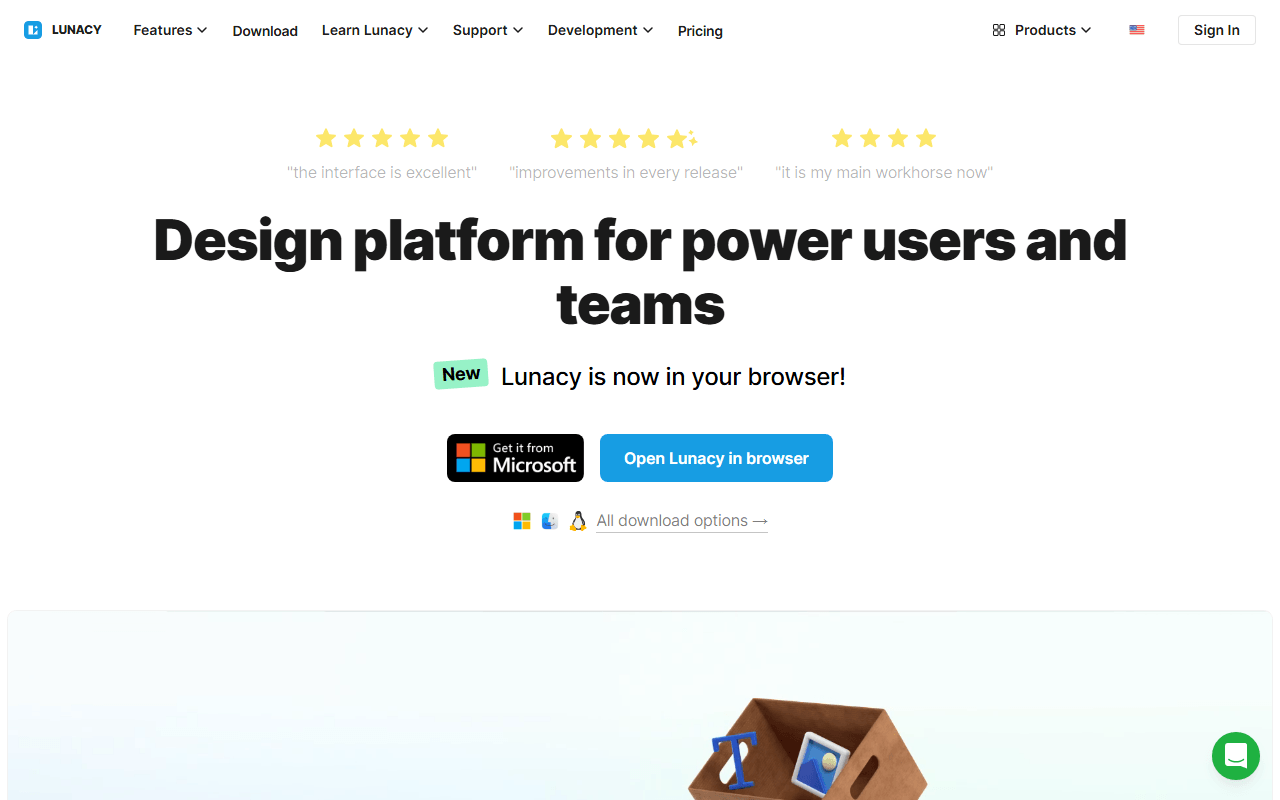
Lunacy is a free native app for Windows, macOS, and Linux, so it sidesteps Photopea's two browser problems: no ads, and no browser-memory ceiling on large files. It is primarily a design tool, but it includes raster editing and, on Pro, an AI background remover and upscaler. As of July 2026 the free plan is generous for local work, with unlimited local documents.
- Free plan, paid from $4.99/month (as of July 2026)
- Best for:
- People who want offline editing in a native app rather than a browser tab
- The catch:
- It is a design tool first, so its raster editing is lighter than Photopea's, and it is closed source freeware.
Compared to Photopea
- Advantage: Native offline app with no ads
- Advantage: Handles large files better than a browser tab
- Advantage: Built-in icon and photo libraries
- Tradeoff: AI background remover and upscaler are Pro-only at $11.99 per month
- Tradeoff: Lighter raster editing than Photopea; not a PSD-first editor
- Tradeoff: Closed source freeware
A complete free vector editor for the illustration and logo work Photopea's raster tools handle awkwardly
Inkscape is the free tool for the opposite kind of image: crisp vector artwork rather than photos. If you were using Photopea to draw logos or icons, Inkscape does that properly, with pen tools, boolean operations, and native SVG, all free under the GPL with no tiers (as of July 2026). It also traces bitmaps into vectors, which Photopea cannot.
- Completely free (as of July 2026)
- Open source (GPL-2.0-or-later)
- Best for:
- Logos, icons, and vector illustration rather than photo editing
- The catch:
- It is a vector editor, so it is the wrong tool for retouching photos, and the interface takes learning time.
Compared to Photopea
- Advantage: Proper vector tools Photopea lacks
- Advantage: Every feature free forever, no ads and no tiers
- Advantage: Native desktop app that works offline
- Advantage: Open source under the GPL, unlike Photopea's closed source
- Tradeoff: A vector editor, so poor for photo retouching
- Tradeoff: Steeper learning curve than Photopea
Actual UI design, if what you needed was screens rather than photo editing
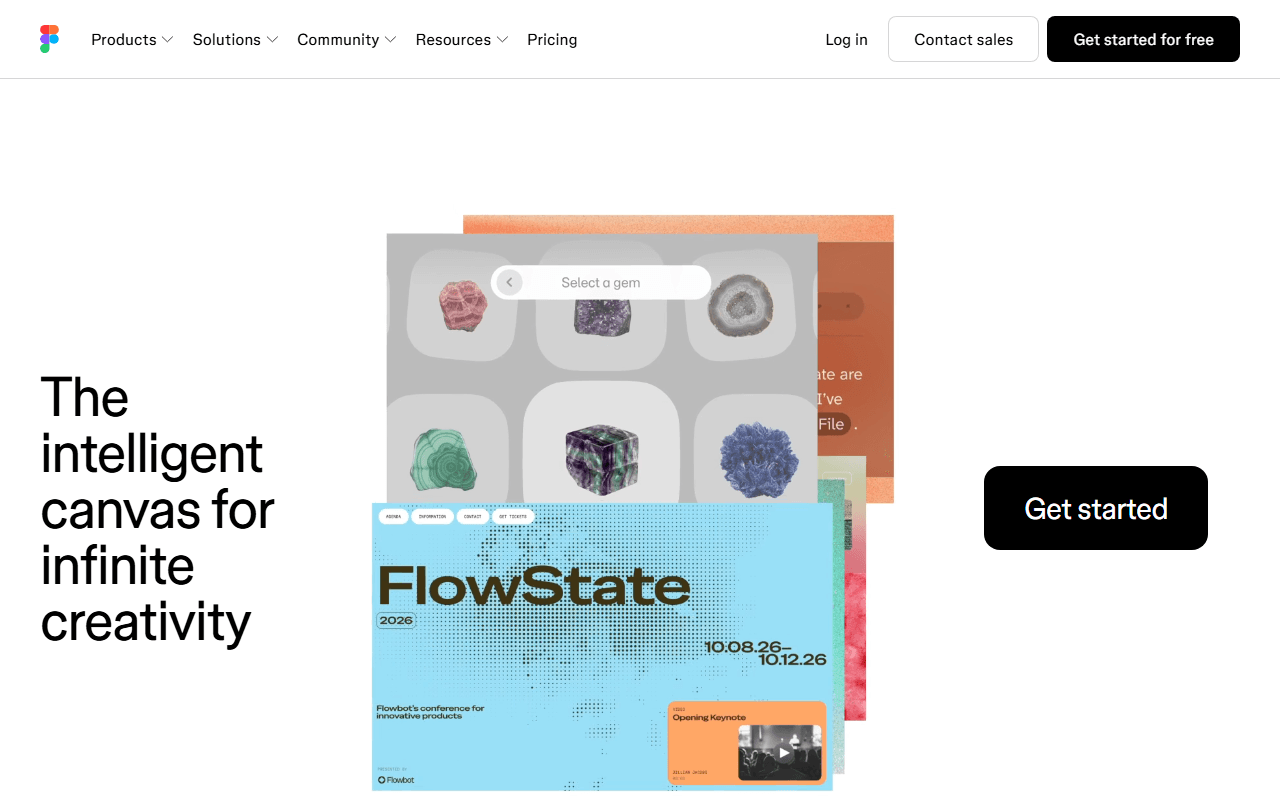
Figma belongs here only if you opened Photopea trying to design an interface. It is the industry-standard UI design tool, browser-based with real-time collaboration and a large plugin ecosystem. The free Starter plan covers 3 design files (as of July 2026); full seats are $16 per month billed annually. It does no serious photo editing, so it complements Photopea rather than replacing it.
- Free plan, paid from $16/month (as of July 2026)
- United States
 United States
- Best for:
- Designing app and website screens, not editing photos
- The catch:
- It is not a photo editor at all, and the free plan caps you at 3 design files.
Compared to Photopea
- Advantage: A real UI design tool, which Photopea is not
- Advantage: Real-time collaboration and a large plugin ecosystem
- Tradeoff: Not a photo editor; it will not replace Photopea's raster work
- Tradeoff: Free plan caps at 3 design files
- Tradeoff: Full seats cost $16 per month billed annually
Open source UI design you can self-host, for the screen-design job Photopea does not do
Penpot, like Figma, is for designing interfaces rather than editing images, but it is open source and free for unlimited files and up to 8 editors (as of July 2026). Reach for it if your Photopea sessions were really UI mockups. It stores everything as SVG and can be self-hosted, so your files stay yours.
- Free plan, paid from $7/month (as of July 2026)
- Spain
- Open source (MPL-2.0)
 Spain
Spain- Best for:
- UI and screen design on an open source tool you can self-host
- The catch:
- It does no photo editing, so it is a companion to Photopea, not a replacement.
Compared to Photopea
- Advantage: Full UI design with components and prototyping
- Advantage: Unlimited files and up to 8 editors free
- Advantage: Open source and self-hostable
- Tradeoff: No photo or raster editing at all
- Tradeoff: Smaller plugin ecosystem than Figma
The professional Adobe route, though its parallel is Photoshop and there is no free tier
Adobe Illustrator is the paid professional standard, but for vector work rather than photos; Photoshop is Photopea's true Adobe parallel. Illustrator has no free tier, only a 7-day trial, and the single-app plan is $22.99 per month billed annually (as of July 2026). Include it only if you need press-grade vector output that free tools handle awkwardly.
- From $22.99/month (as of July 2026)
- United States
- Best for:
- Professionals who need press-ready vector artwork and already pay for Adobe
- The catch:
- No free tier at all, and it is a vector tool, not the photo editor Photopea is.
Compared to Photopea
- Advantage: Professional-grade vector and print output
- Advantage: Deep CMYK and press-ready support
- Tradeoff: No free tier, only a 7-day trial
- Tradeoff: A vector tool; Photoshop, not Illustrator, is Photopea's real parallel
- Tradeoff: $22.99 per month billed annually
How to choose
Sort by the job. For quick photo edits and social graphics without ads, Canva's free tier covers most of it, though its background remover is a Pro feature. For a native app that edits offline and handles big files better than a browser, Lunacy is the closer fit. For vector illustration reach for Inkscape, and for actual UI design, Figma or Penpot. None of these open PSD files as faithfully as Photopea does, so keep it around for that.