Free alternatives to ScreenFlow
ScreenFlow is $199 as a one-time purchase (as of July 2026), and the unlicensed build Telestream calls a FREE trial watermarks every movie you export, so there is no free path to a finished video. The $199 is not quite the end of it either: major-version upgrades cost $79 or $119 later, and the Super Pak bundles carry a $99 a year stock library underneath the headline price. Then there is the pace. ScreenFlow has been on version 10 since June 2021 and went 21 months without a release before returning in August 2025. The free Mac tools below cover the recording half well, and none of them covers the timeline, the callouts, the motion graphics or the stock library. For that half, pair one of them with a [free video editor](/best/video-editing): DaVinci Resolve runs on the same Mac and its free build is the full application, and iMovie is already installed. What you will not find free anywhere is the stock library.
Facts checked as of July 2026Read our ScreenFlow review
Jump to an alternative


Cap
Best Free Alternative ToScreenFlowA Mac-native recorder with an editing step, open source, and $29 a year against $199
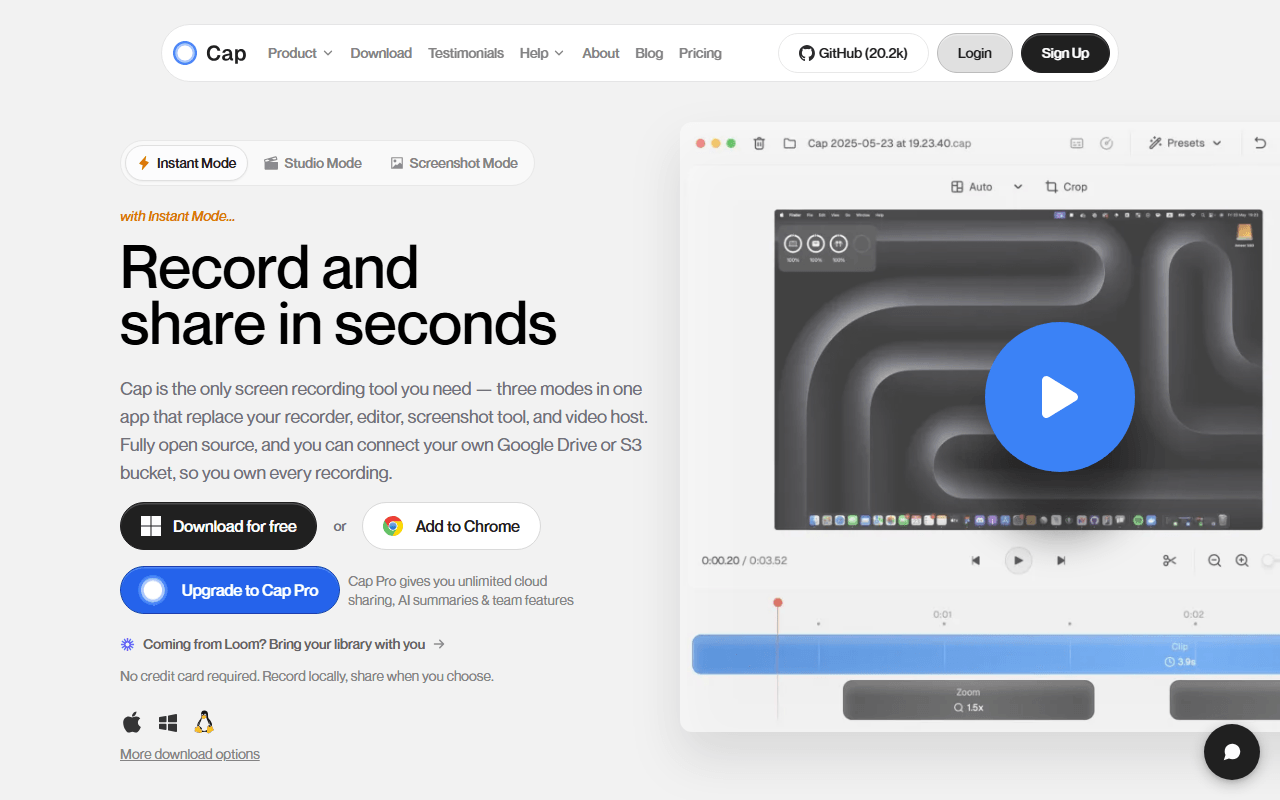
Cap is the free Mac tool that comes closest to the reason people buy ScreenFlow, which is wanting the finished video to look considered. Studio Mode records locally at high quality then opens an editor with automatic zoom on clicks, background padding and export up to 4K/60fps, so the polish arrives without a timeline session. It is open source under AGPLv3 with MIT components, and the desktop app, web app, API, database, media server and storage all self-host with Docker Compose, which is a kind of permanence a one-time licence cannot offer.
- Free plan, paid from $29/year (as of July 2026)
- Open source (AGPL-3.0 (parts of the codebase are MIT))
- Best for:
- Mac creators who want a produced-looking recording without buying and learning an editor
- The catch:
- The hosted free tier is personal use only and caps recordings at 5 minutes, so unlimited free means running Docker yourself.
Compared to ScreenFlow
- Advantage: No watermark on free exports, where ScreenFlow watermarks everything until you pay $199
- Advantage: A $29 per year Desktop License covers unlimited local recording with commercial rights, roughly a seventh of ScreenFlow's price
- Advantage: Open source and fully self-hostable, so it cannot go quiet on you the way a closed product can
- Advantage: Hosted share links and viewer analytics, which ScreenFlow has no equivalent for
- Tradeoff: Studio Mode is not a multi-track timeline, so no callouts, motion graphics, templates or stock library
- Tradeoff: Free use is personal only and stops at 5 minutes per recording
- Worth knowing: Cap also runs on Windows, where ScreenFlow never has
Completely free on macOS with no watermark, no length limit, and quality settings you own
OBS Studio answers the part of ScreenFlow that is just capture, and it answers it with nothing to pay ever. GPL-2.0, no account, no watermark, no length cap and no paid tier, running natively on macOS alongside Windows and Linux. You choose the encoder, bitrate and frame rate, so a long course recording at high quality is routine. It also mixes multiple screens, windows, cameras and audio devices into scenes you switch between mid-recording, and it streams live to Twitch, YouTube or any RTMP endpoint, which ScreenFlow does not do.
- Completely free (as of July 2026)
- Open source (GPL-2.0-or-later)
- Best for:
- Long recordings, multi-source setups, live streaming, and anyone who refuses to pay at all
- The catch:
- There is no editor. OBS hands you a file, so every trim, callout and title that ScreenFlow does on the timeline has to happen elsewhere.
Compared to ScreenFlow
- Advantage: Free forever with no watermark, against $199 to get a clean export from ScreenFlow
- Advantage: Scene mixing across screens, windows, cameras and audio devices during the take
- Advantage: Live streaming to any RTMP endpoint, which ScreenFlow does not offer
- Advantage: Actively developed with frequent releases, where ScreenFlow has been on version 10 since June 2021
- Tradeoff: No timeline, no callouts, no motion graphics and no stock library
- Tradeoff: About an hour of setup before your first take, against ScreenFlow's press-record simplicity
The tiny MIT-licensed Mac recorder for the clips ScreenFlow is far too much tool for
Kap is what you open when launching ScreenFlow for a fifteen-second clip feels absurd. Drag a box around part of the screen, record, trim, export as video or GIF, done. It is MIT licensed, completely free, asks for no account, and installs from the site or Homebrew Cask on Apple Silicon and Intel. It is not a ScreenFlow replacement and does not pretend to be. It is the other half of a Mac recording setup, for the clip that goes into a pull request rather than a course.
- Completely free (as of July 2026)
- Open source (MIT)
- Best for:
- Quick Mac clips and GIFs for pull requests, issues and chat threads
- The catch:
- The most recent tagged release is v3.6.0 from October 2022, so check it still runs on your macOS version before relying on it. ScreenFlow, for all its slowness, shipped in February 2026.
Compared to ScreenFlow
- Advantage: Completely free and MIT licensed with no account and no watermark
- Advantage: GIF export, which ScreenFlow does not advertise
- Advantage: Opens and records in seconds, where ScreenFlow expects a project
- Tradeoff: Unmaintained since v3.6.0 in October 2022, which is a longer silence than ScreenFlow's 21-month gap
- Tradeoff: Editing is trimming only, so nothing resembling ScreenFlow's timeline
- Worth knowing: macOS only, exactly like ScreenFlow
Free browser recorder that draws, blurs and spotlights the cursor while you record
Screenity covers the annotation part of ScreenFlow's appeal without the $199. The GPL-3.0 Chrome extension records screen, tab, window or camera with no account and no time limit, and the recording writes to your own Mac. What makes it worth a place on a ScreenFlow list is what you can do mid-take: draw on the screen, add arrows and text, blur a sensitive region live, and spotlight the cursor with click ripples. ScreenFlow does that kind of emphasis afterwards on the timeline, which is more controllable and much slower.
- Free plan, paid from $10/month (as of July 2026)
- Open source (GPL-3.0)
- Best for:
- Support clips and teaching where the callout has to happen live, not in post
- The catch:
- Chrome only, so nothing outside the browser gets captured, and share links plus scene-based editing need Screenity Pro at $10 per month.
Compared to ScreenFlow
- Advantage: Unlimited free recording with no watermark, against ScreenFlow's watermarked trial
- Advantage: Live drawing, blur and cursor spotlight during the recording itself
- Advantage: Open source under GPL-3.0, and it runs local-only from source with no sign-in
- Tradeoff: Chrome only, so a Mac app demo outside the browser is out of reach
- Tradeoff: No multi-track timeline, motion graphics, templates or stock media
- Tradeoff: Cannot record a connected iPhone or iPad, which is one of ScreenFlow's real strengths
Unlimited free hosted recording with transcription, on a Mac app and a Chrome extension
If the ScreenFlow project you keep opening is really a walkthrough someone watches once, Kommodo does that job free. Its free tier advertises unlimited videos of unlimited length with no watermark (as of July 2026), plus hosted share links, transcription, AI summaries and a step-by-step written guide generated from the recording. It runs as a Chrome extension and a desktop app on macOS. Nothing gets edited to a professional finish here, and for a walkthrough that is usually the correct amount of effort.
- Free plan (as of July 2026)
- United States
 United States
- Best for:
- Long walkthroughs and process documentation you send as a link rather than a file
- The catch:
- No published paid pricing at all, no self-hosting, and a light editor, so anything needing real post-production still means exporting.
Compared to ScreenFlow
- Advantage: Free with no watermark and no length cap, where ScreenFlow watermarks until you pay
- Advantage: Hosted links, transcription and AI summaries, none of which ScreenFlow provides
- Advantage: Generates a written step-by-step guide from the recording
- Tradeoff: Light editor, so no timeline, callouts, motion graphics or templates
- Tradeoff: No published pricing table, so future cost is unknowable in a way $199 once is not
- Tradeoff: Closed source and cloud-only, where ScreenFlow keeps everything on your Mac
The polished send-a-link tool with a real free tier, for videos that were never projects
Loom belongs at the bottom of a ScreenFlow list on purpose, because it does a different job well. Free Starter allows 25 videos per person at 5 minutes each, in workspaces of up to 50 members, with transcription in 50+ languages (verified July 2026). Record with a camera bubble, stop, and the link is already copied. If a chunk of what you make in ScreenFlow is a short explanation for one person, that work does not need a $199 editor and Loom's free plan will absorb it.
- Free plan, paid from $18/month (as of July 2026)
- United States
- Best for:
- Short explanations for colleagues that never justified opening an editor
- The catch:
- 25 videos of 5 minutes each on free, and Business is $18 per user per month, so two years of one seat costs more than ScreenFlow does once.
Compared to ScreenFlow
- Advantage: A genuine free tier with no watermark, where ScreenFlow's trial watermarks every export
- Advantage: Instant share links, comments at a timestamp and viewer analytics
- Advantage: Works on any platform including Windows and mobile, not just macOS
- Tradeoff: The free plan stops at 25 videos of 5 minutes each
- Tradeoff: Editing is trimming, so nothing like ScreenFlow's timeline, motion graphics or stock library
- Tradeoff: Subscription pricing means it eventually costs more than ScreenFlow's single $199
- Worth knowing: Videos live on Loom's servers, where a ScreenFlow project stays on your Mac
How to choose
Everything here runs on a Mac, so the question is what you do after you stop recording. Cap is the pick if you want the result to look produced without opening an editor, because Studio Mode adds auto-zoom on clicks and a proper export step, and $29 a year for unlimited local recording is a seventh of ScreenFlow's price. Take OBS Studio instead when the recording is long or the quality has to be exactly yours, and accept that you finish with a file. Kap is the fastest tool on this page for a fifteen-second clip or a GIF, with the honest warning that its last tagged release was October 2022. Screenity is the one to use when you need to draw on the screen mid-take, Kommodo when you want an unlimited hosted link for free, and Loom when the video is really just a message. If your ScreenFlow projects involve the timeline, callouts, motion graphics or the stock library, none of these replaces that, and buying ScreenFlow once at $199 may still be the cheaper answer.